

Manual install link: https://mobi.sc.energyunite.co.za/
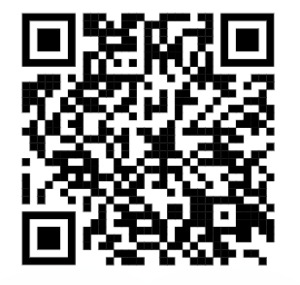
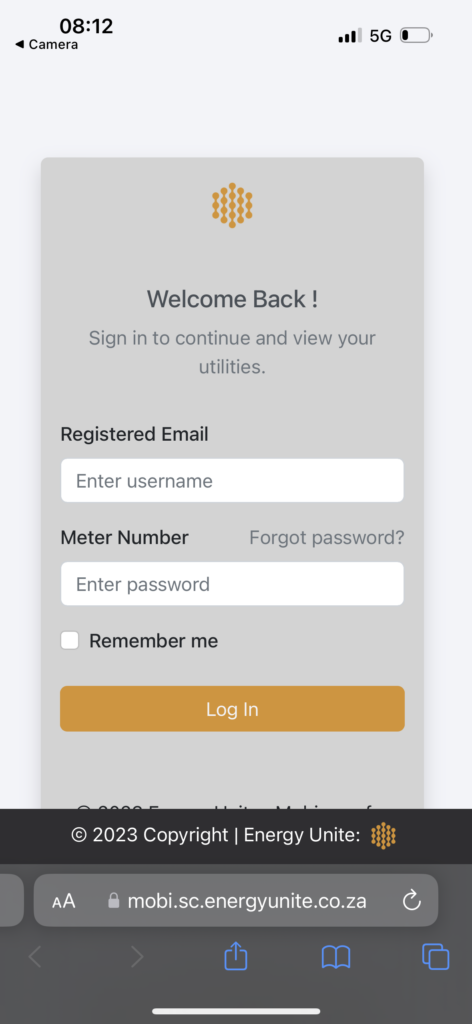
Start by scanning our QR code. You will be redirected to the EU Mobi App login page. ( You might need to click on the link displayed depending on your OS version)

- Enter your username & password. The email you registered with for your utilities will be the username and your meter number the password
- Click on the “share” button.
2. Scroll down to the “Add To HomeScreen” option and tap on it

3. Confirm by clickin on the “Add” button

4.Done, you EUIS Mobi App is now installed on your phone


Manual install link: https://mobi.sc.energyunite.co.za/
Start by scanning our QR. You will be redirected to the EU Mobi App login page. ( You might need to click on the link displayed depending on your device)
- Enter your username & password. The email you registered with for your utilities will be the username and your meter number the password
- A pop-up banner will display at the bottom of your screen. Tap on “Add to Home Screen“

2. Choose “Install” on the next screen

3. The EU Mobi App is now installed on you phone